Barcode Compare Software Tutorial: Production Line Error-Proofing with Three-Color Alarm Light Integration
Scanning the wrong material on the line or shipping the wrong goods from the warehouse is often "just one barcode" away. Xinlong barcode compare software connects a scanner over serial and compares each scanned barcode against preset standard barcodes in real time — green when it matches, red alarm with latch when it doesn't — and pairs with a three-color alarm light for long-distance alerts. In minutes you can build a low-cost, zero-learning-curve error-proof verification station. This tutorial walks you through the whole flow from installing the software to going live.
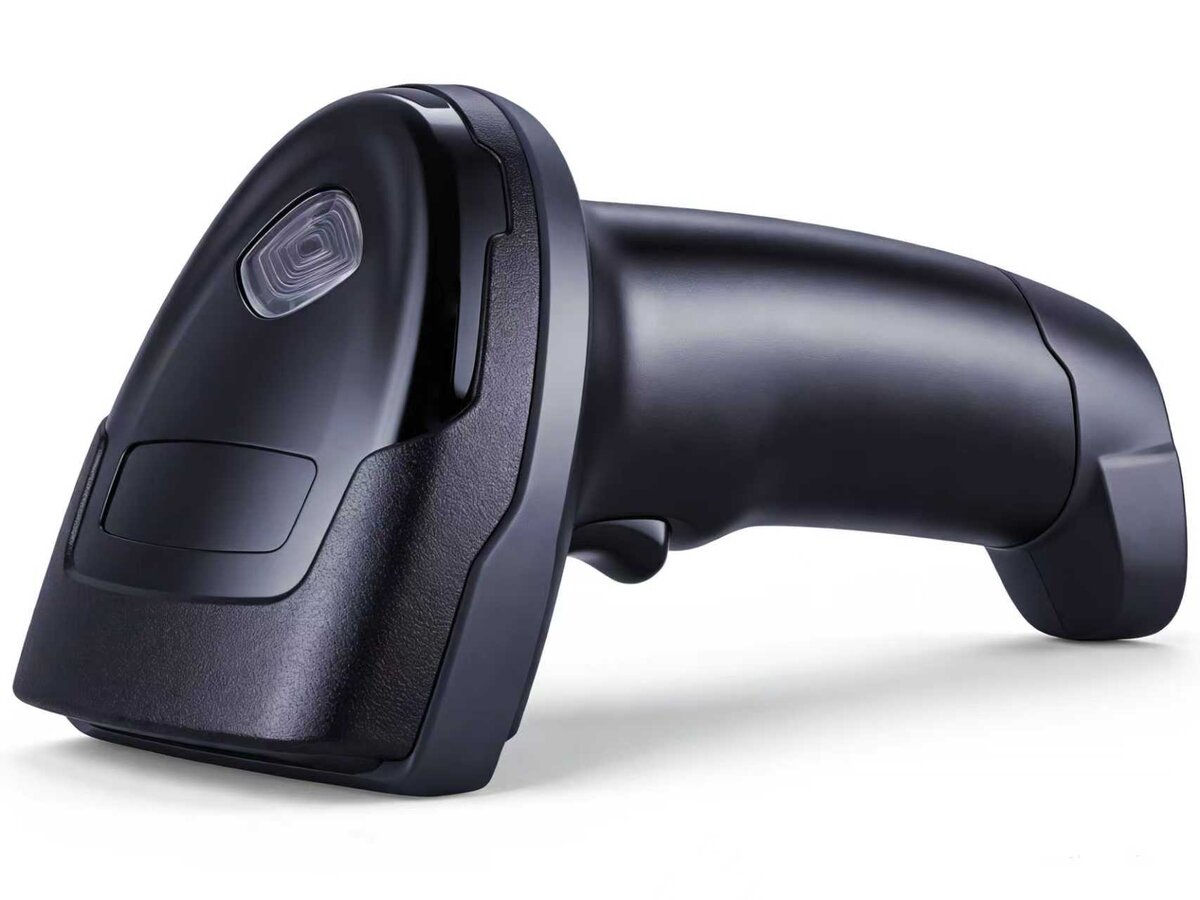
Serial scanner + compare software + alarm light = standard error-proof station
1. What the Software Can Do
- Scan-to-compare: barcodes scanned via the serial scanner are compared with standard barcodes — an exact match shows green "Correct"; a mismatch shows red "Error" with alarm;
- Three-color alarm light linkage: green on correct (lights once, auto-off); red + buzzer with latching alarm on error;
- Traceable records: every scan auto-records time, barcode and result, exportable as CSV reports;
- No install, no deploy: single-file exe, double-click to run, config auto-saved.
2. Three Steps to Start Scan-to-Compare
1. Connect the Scanner
Connect the scanner to the PC with an RS232 serial cable (or USB-to-serial) and install the driver.
Open the software, select the scanner's COM port in the Serial Settings section — the dropdown shows
device names such as COM5 - USB-SERIAL CH340 for easy
identification — with the baud rate defaulting to 9600. Click Open Serial Port and it turns green
"Connected". The software refreshes the port list every 3 seconds, so hot-plugging the scanner is
always recognized.
2. Set Standard Barcodes
Choose any of three ways:
- Scan to enter (recommended): click "Scan Standard" to enter entry mode, scan standard samples one by one — each is auto-added and saved;
- Manual input: type directly in the left text box, one barcode per line, click "Save Standard Barcodes";
- Use the latest scan as standard: scan one correct sample first, add it as standard in one click.
3. Start Scanning
Just scan product barcodes: correct shows a big green box "✓ Correct"; wrong shows a big red box "✗ Error" with an alarm. For continuous work, set the auto-clear seconds in Options (e.g., 2 seconds) so the result resets automatically after display and the line never stops.
3. Three-Color Alarm Light Linkage (Key Feature)
The alarm light connects to the PC via a dedicated light-control serial port, independent of the scanner port. Select the port in the Light Control section and click Open Light Control to use it:
- Selectable modes: light mode (off/green/yellow/red), buzzer (on/off) and flash frequency (off/0.85s/1.7s/2.5s) dropdowns; "Test Send" verifies at any time;
- Correct lights once: on a correct match the green light stays on about 0.8 s then auto-off, without disturbing the work;
- Error latch: on a mismatch the red light + buzzer keep alarming and latch — while alarming, scans are not counted or recorded, preventing a correct barcode from bypassing the alarm;
- One-key reset: click "One-Key Reset (Stop Alarm)" to release the latch and silence the alarm; scanning resumes counting;
- Auto-off on exit: closing the software sends the light-off command automatically — light off, buzzer silent, no lingering alarm.
Scan error → alarm latch → manual confirmation and handling → press "One-Key Reset" → scan again and counting resumes. Mandatory human intervention throughout eliminates "fudged" scanning and keeps data truthful.
4. Records, Statistics & Export
Every scan is auto-logged in the Scan Records list with real-time totals for count/correct/error. Click Export Records to produce a CSV file (opens directly in Excel, with company header, all records and statistics); the software also auto-generates daily logs for monthly traceability and quality analysis.
Related Products

Related Articles
- Barcode Technology in Manufacturing Traceability: Full-Process Error-Proofing from Work Order to Finished Product
- Barcode Technology in Library & Archive Management: From Cataloging to Inventory
- Choosing the Right Barcode Scanner Interface: USB-HID, Virtual COM, TTL232, RS232, RS485 & Ethernet Explained
Free Download
Barcode Compare Software v1.9 portable edition (with detailed instructions) — download and use immediately; you can also contact Xinlong to customize software features.
⬇️ Go to Downloads Page