Barcode Won't Scan? 10 Common Causes and How to Fix Them
When a barcode stops reading, don't replace the scanner yet. Almost every “won't scan” case falls into ten causes: half in the code and label, a quarter in the media and surface, the rest in the device, environment and configuration. Each one follows, with a checklist you can run at the workstation.
1. Two symptoms, two directions
Nothing is read — no beep, no LED, nothing on screen: the problem is optical or decoding-related (code quality, size, glare, ambient light, distance, angle). Read but no data — the scanner beeps, the host sees nothing: check interface mode, driver, prefix/suffix and power.
2. Code and label problems (most common)
1. Poor print quality and contrast
Barcodes are read from the reflectance difference between bars and spaces. A worn printhead, an empty ribbon or expired thermal paper gives grey, ragged bars. Print contrast should be at least 30%; relabel anything below ANSI grade C.
2. Code too small (not enough mils)
A mil is the narrow element width (1 mil = 0.0254 mm). Shrinking 10 mil artwork to 5 mil often exceeds the reader's precision. A ≥5 mil rating is an ideal-condition limit — print field codes at least 1.5× that value.
3. Blocked quiet zone, damage or creases
The blank quiet zones tell the decoder where the code starts and ends. Text, borders, tape or a neighbouring label encroaching on them makes the decoder give up; a crease or scratch across a bar makes it a bad code.
4. Reflective or laminated labels
Glossy paper, gloss lamination and brushed metal create specular reflections that wipe out contrast. Switching to matt stock beats tweaking the reader; if gloss is unavoidable, use a fixed-mount reader with polarised illumination.
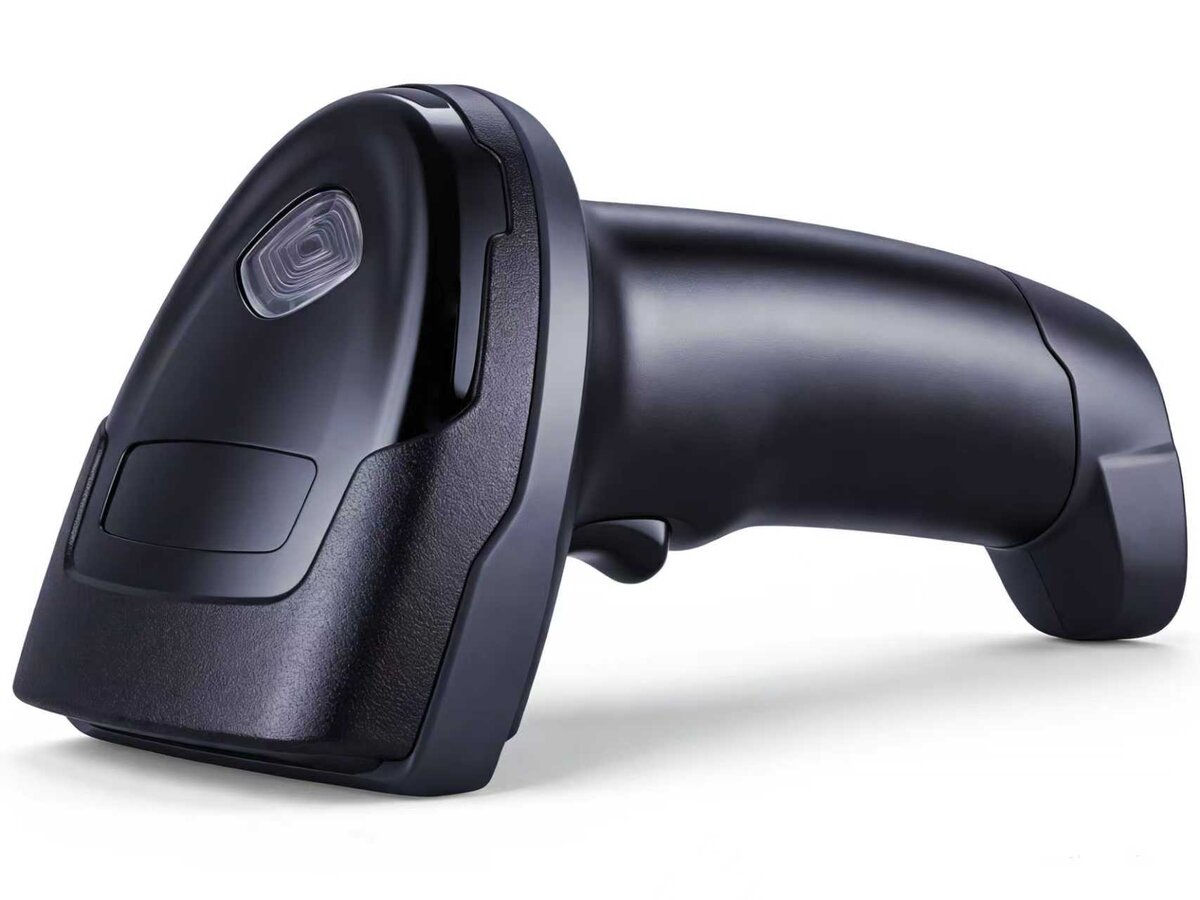
Most read failures start with the label, not the scanner
3. Media and surface
5. Curved, cylindrical and recessed surfaces
Codes on tubes, bottles or recessed features distort and lose focus locally. 1D symbologies are especially sensitive because the bars must be sampled along one line — which is why curved applications move to QR or Data Matrix.
6. Phone screen codes
Screen codes have far lower contrast and vary with brightness, screen protectors and refresh rate. The reader needs a screen-code mode that lowers exposure and suppresses banding; paper-only models perform poorly here.
4. Environment and optics
7. Direct sunlight and flicker
Failures outdoors or at a window are usually ambient light overpowering the illumination. Cheap LED lighting flickers, giving “sometimes it scans, sometimes it doesn't”. A hood or a change of station orientation usually fixes it.
8. Out of range on distance or angle
Every model has a defined depth of field: past the far limit or inside the near limit it cannot read. Keep handheld tilt within about ±30°; on fixed mounts, match depth of field to the field of view.
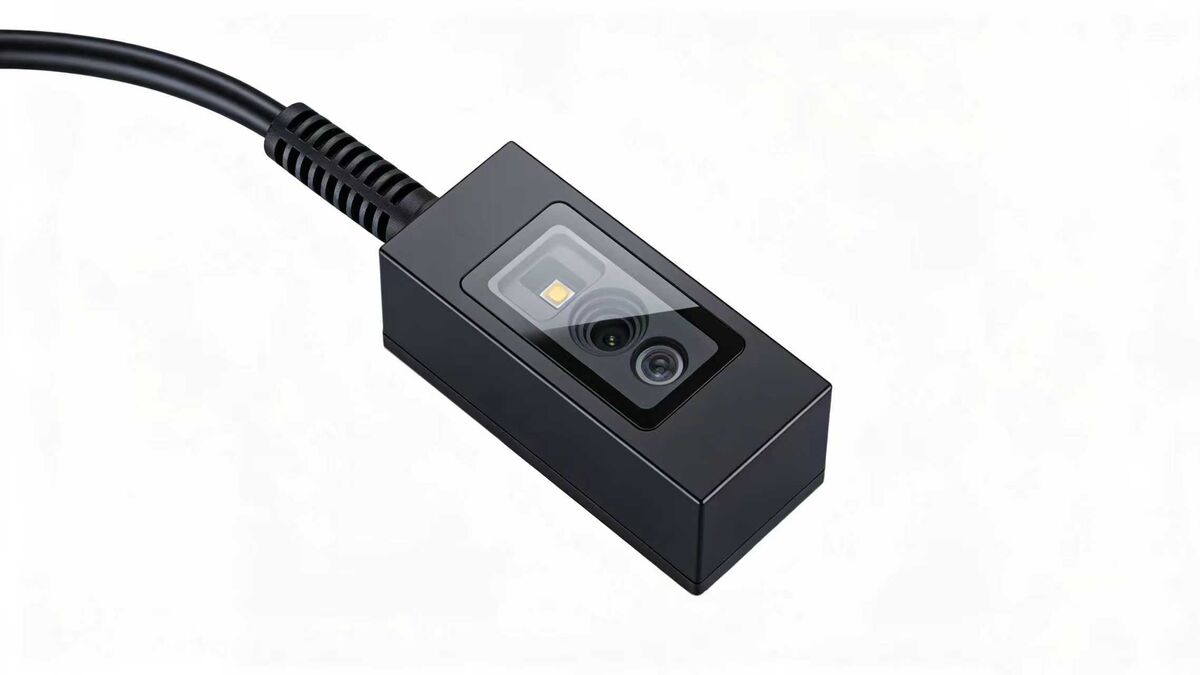
Fixed-mount failures are usually mounting distance and angle
5. Communication and configuration
9. Interface mode, keyboard layout and prefixes
USB-HID, USB virtual COM (VCP) and HID-POS look completely different to the host: HID delivers keystrokes, VCP a serial stream. If your software reads a serial port while the scanner is in HID, it looks dead. A wrong keyboard layout shifts digits and symbols; missing suffixes make output look absent.
10. Cables, adapters and power
Long extensions, poor adapters and insufficient current cause brown-outs at start-up and intermittent failures. Embedded modules need current headroom: trigger current is well above idle, so an undersized supply looks like “scans once, then nothing”.
6. Quick troubleshooting table
| Symptom on site | Most likely cause | Quick test | Fix |
|---|---|---|---|
| An entire batch of labels fails | Poor print quality, undersized code | Try a standard test code | Reprint artwork with a larger code |
| Intermittent within one batch | Quiet zone blocked, gloss reflection | Re-read from another angle | Restore the quiet zone, use matt stock |
| Paper codes read, screen codes don't | No screen-code mode | Raise screen brightness and retry | Use a screen-code capable model |
| Fails only at certain times of day | Sunlight or lighting flicker | Shade the light source | Add a hood, re-orient the station |
| Works close, fails at distance | Past the depth-of-field limit | Walk the read point outwards | Change mounting distance or model |
| Beeps, but host gets no data | Interface mode or driver mismatch | Type into Notepad and look for characters | Match the interface mode and driver |
| Digits and symbols are wrong | Keyboard layout set incorrectly | Scan a test string and compare | Reset the layout for the host OS |
| Intermittent restarts | Cable too long, insufficient power | Swap for a short cable and bench supply | Add a dedicated supply, use industrial grade |
7. When to replace the device
If label quality, lighting, distance and interface have all been checked, the reader no longer matches the application — reflective metal, wrinkled codes, very small symbols, high-speed lines. Selection then comes down to three things: depth of field covering your mounting distance, resolution matched to the narrow element width, and decoding engineered for bad codes.
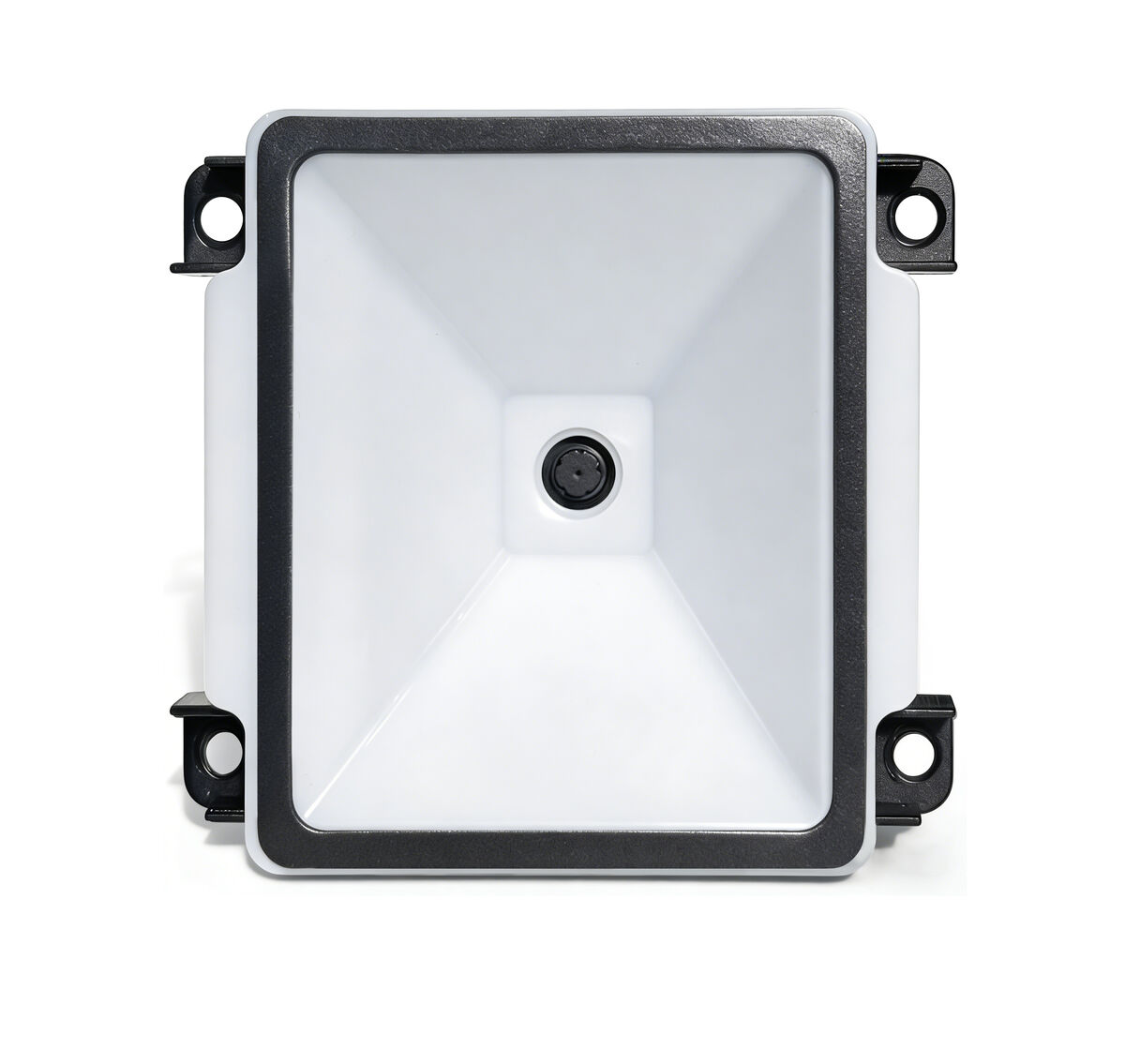
In harsh conditions, choosing the right module beats endless tuning
Related products
Related articles
Still stuck on site, or selecting for reflective, damaged or very small codes?
Send us a photo, the symbology and your mounting distance — we will recommend a model for the application. Evaluation samples are available.
📞 Contact Xinlong IoT