D52-E Access Reader: Selection and Installation Guide
Access control retrofits rarely fail on reading — they fail on matching: the controller only speaks Wiegand, the cut-out is a standard 86 box, and nobody wants to reissue thousands of cards. The D52-E access reader puts QR scanning, NFC cards and ID card UID reads into one 86-box panel with USB, serial, Ethernet and Wiegand outputs — dropping into existing controllers and turnstile mainboards, usually without touching the wiring. This guide follows a retrofit in order: selection, installation, integration and troubleshooting.
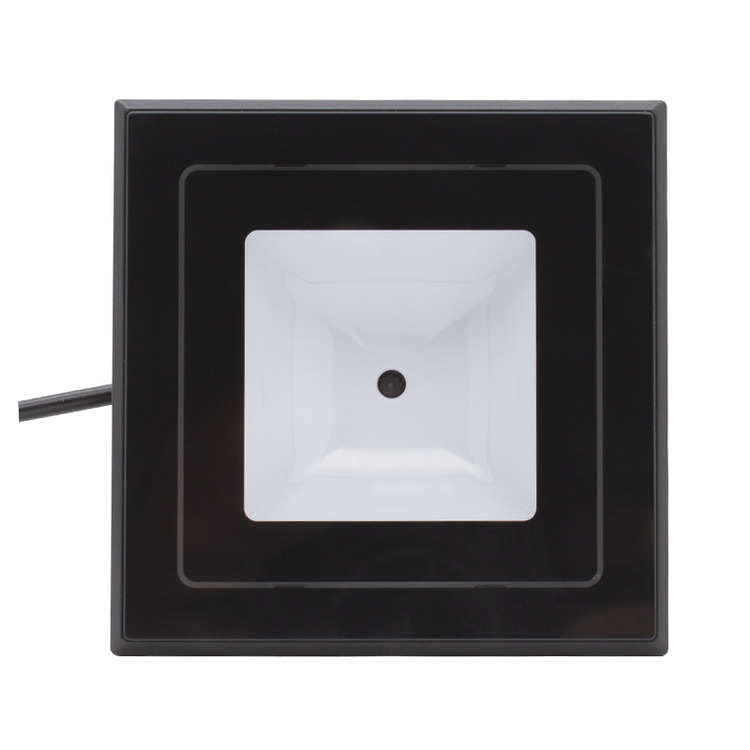
D52-E access reader · QR, NFC cards and ID card UID in one 86-box panel
1. Three Decisions Before You Order
Start with an inventory, not a product page: which controller is on site, which port is free, and what credentials people carry. Those answers pick the reader.
1.1 Credentials
One panel covers three types: QR / barcode codes (including phone screen codes), NFC cards (Mifare-compatible, ISO/IEC 14443A, NFC phones) and 2nd-generation ID card UID. Visitor QR passes, staff cards and real-name checkpoints all read on the same unit.
1.2 Output interface
Where the signal goes decides the output. Into an existing controller — choose Wiegand and keep the controller, card base and software. To a platform server — choose Ethernet and report over HTTP / HTTPS / TCP / UDP with remote configuration. Into a kiosk, industrial PC or turnstile mainboard — choose USB or serial. Confirm the reserved port before ordering.
1.3 Fit and environment
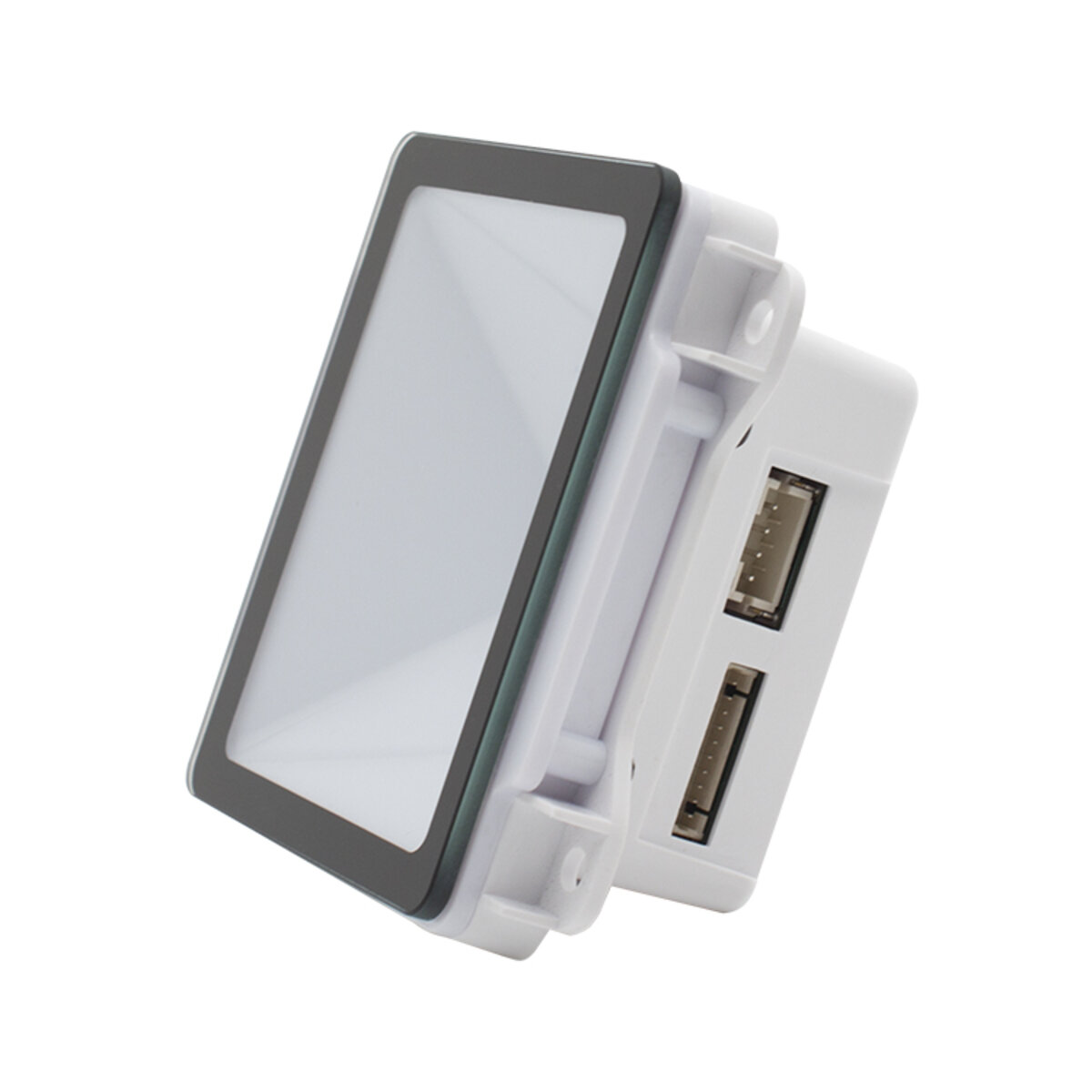
The D52-E is a standard 86-box unit (86.21×86.21×32 mm) with side fixing holes and a 20 cm cable, replacing the old panel reader directly. IP65 protection and -20°C to +60°C operation cover indoor and outdoor points, and the scan window carries its own fill light for garages and night lanes.
2. Installation Notes
Fitting is a swap: remove the old reader, seat the D52-E in the 86 box and fix it through the side holes. Route the 20 cm cable before closing the cover, with slack for the terminal.
Power is rarely a problem — DC 5–24 V wide input at 200 mA (240 mA max, about 1 W) sits within most existing door supplies. Triggering is automatic / motion-sensing by default, and the buzzer can be adjusted on site with configuration codes, no laptop needed.
Outdoors, keep the panel clear of direct glare and standing water, and seal the seating surface properly. Custom buzzer sounds and protocol needs come through firmware updates.
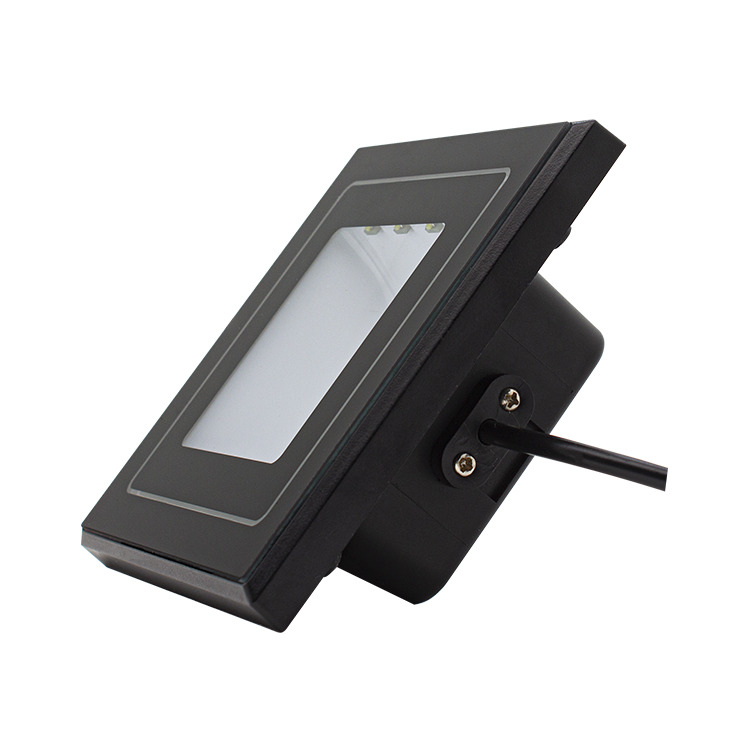
Side cable exit and fixing structure · 20 cm cable for 86-box installation
3. Three Integration Routes
3.1 Keep the existing controller (Wiegand)
The least disruptive path: controller, card permissions and backend stay untouched, and the old reader swaps to the D52-E on Wiegand. Existing cards keep working, and new QR passes are issued from the platform — smallest scope, shortest downtime.
3.2 Go networked (Ethernet)
For new builds and networked campuses, the reader joins the network directly: records stream to the platform over HTTP / HTTPS / TCP / UDP, with remote configuration and firmware updates. Multi-door sites stop running a comms line to every controller.
3.3 Feed a host device (USB / serial)
To embed reading into an existing workflow, connect over USB or serial to kiosks, visitor terminals, attendance machines or turnstile mainboards; the host runs the logic while the D52-E handles the read. ID card UID reads link each pass to a registration record.
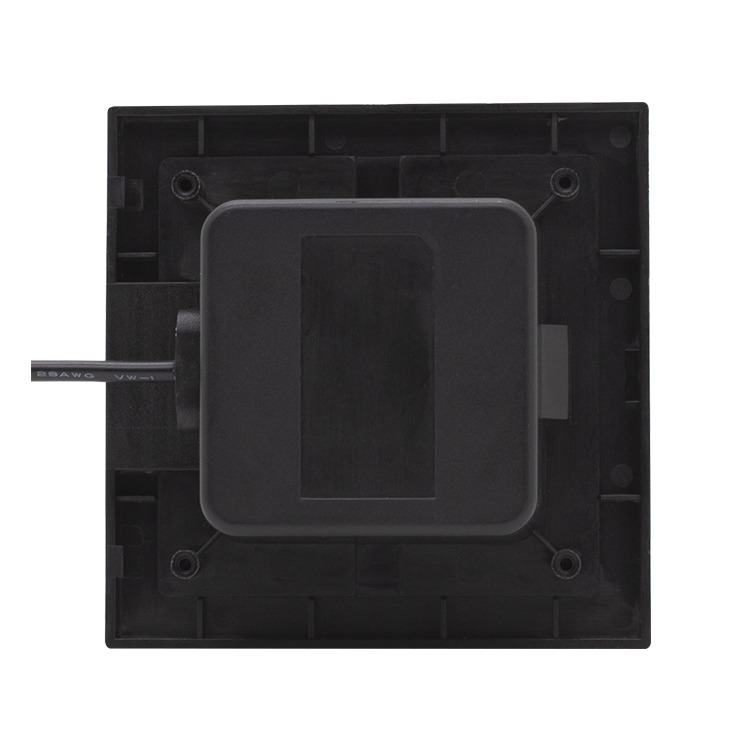
Back-plate mounting holes and cable structure · a direct swap on the old panel position
4. Field Troubleshooting
QR code will not read: check screen brightness and glare first (anti-peep films especially), then the 10–100 mm range and an unscratched window film.
Card will not respond: verify the card type (Mifare-compatible / ISO/IEC 14443A / NFC phones) and tap position; keep the mounting point clear of metal frames and strong electrical noise.
What ID UID means: a card-serial-level read used to link a pass with a registration record.
Weather: IP65 and -20°C to +60°C are inside the design envelope.
No response after fitting: check DC 5–24 V power and the interface mode; if it stays dark, contact Xinlong support.
5. Specifications
| Item | Specification |
|---|---|
| Type | Access control reader (QR / NFC / ID card UID, 3-in-1) |
| Sensor / resolution | CMOS / 640 × 480 |
| Precision / depth of field | ≥ 7 mil / 10–100 mm |
| Print contrast / ambient light | ≥ 30% / 0–100,000 LUX |
| NFC reading | Mifare-compatible cards, ISO/IEC 14443A standard cards, NFC phones, 2nd-generation ID card UID |
| Symbologies | 1D: Code 11/39/93/128, EAN-8/13, UPC-A/E, Codabar, GS1 and more; 2D: QR Code, Micro QR, PDF417, Data Matrix, Aztec, Grid Matrix |
| Interfaces / network | USB / serial / Ethernet / Wiegand; HTTP, HTTPS, TCP, UDP |
| Trigger / feedback / setup | Automatic / motion-sensing; buzzer; config-barcode setup, firmware upgradeable |
| Input voltage / current | DC 5–24 V; 200 mA operating, 240 mA max |
| Power | 1 W operating, 1.2 W max |
| Dimensions / weight | 86.21 × 86.21 × 32 mm / 260 g |
| Fixing / cable | Side mounting holes / 20 cm |
| Protection / operating temp | IP65; -20°C to +60°C (storage -40°C to +80°C) |
| Humidity / safety | 5%–95% (non-condensing); EMC EN55022 / EN55024, EN60950-1 |
Related products
D52-EAccess control reader (this article)
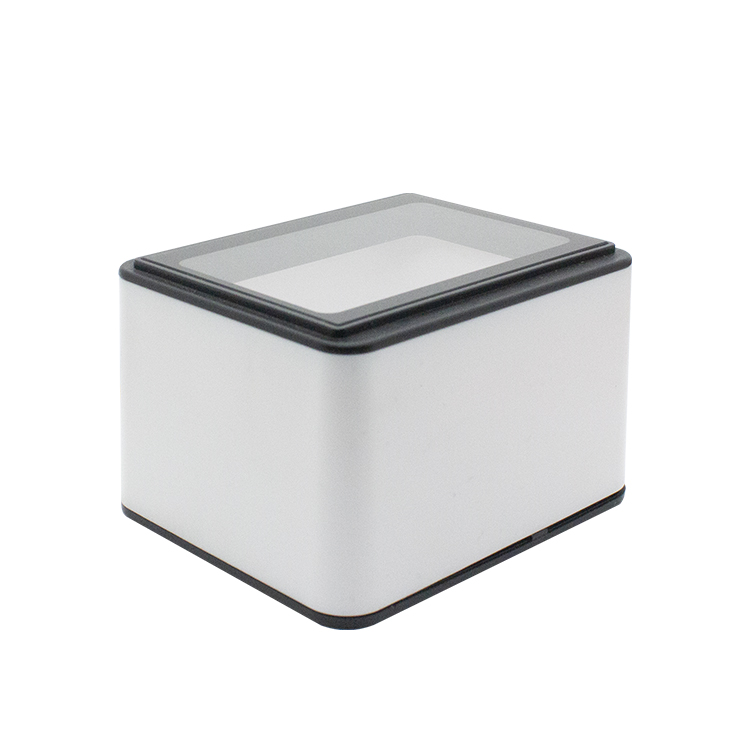 XL-F24Network QR code reading engine
 F21-NFCEmbedded scan + NFC module
Related articles
- D52-E Access Reader: QR, NFC and ID Card in One 86-Panel Unit
- XL-F24 Network QR Code Reading Engine: Turnstiles, Access Control & Parking QR Scanning
- Choosing the Right Barcode Scanner Interface: USB-HID, Virtual COM, TTL232, RS232, RS485 & Ethernet Explained
- F21-NFC-W Wireless Embedded Scan Module: Barcode + NFC + WiFi
Planning an access control retrofit?
Send your controller or turnstile model and door requirements — free sample testing, with engineering support for Wiegand and Ethernet integration.
📞 Contact Xinlong IoT